Screen Recorder: Facecam Audio
- 4.4
- Rating
- 10.00M
- Installs
- Free
- Price

 Analysis by App-foxy
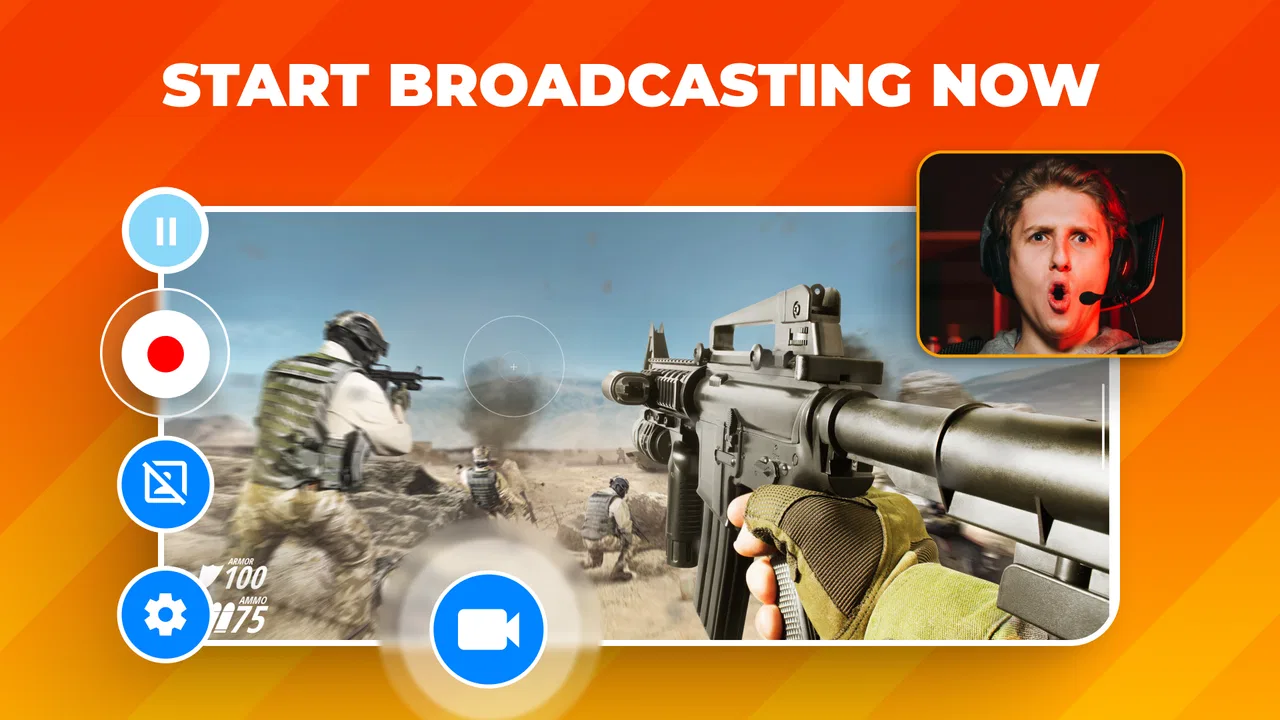
Screen Recorder: Facecam Audio is the kind of Android app I reach for when I need to explain something visually instead of writing a long message. It records what is happening on the phone, can include microphone sound, and offers an optional camera overlay for a more personal presentation. The useful part is that the recording can be shared without a watermark, so the finished clip feels cleaner than many basic screen-capture tools.
I tested it as a practical video tool rather than treating it like a feature checklist. My impression is straightforward: this is a focused screen recorder for tutorials, gaming clips, troubleshooting, demonstrations, and quick face-to-camera reactions. It is free to start, rated for Everyone, and developed by Prometheus Interactive LLC. With a 4.3 average from roughly 647,000 ratings and more than 10 million installs, it has clearly found an audience among people who want a simple way to capture their phone screen.
That popularity does not make it perfect. The app is most convincing when I use it for short, purposeful recordings and prepare the phone before pressing record. It is less suitable when I need a complete video-editing suite, elaborate scene layouts, or a highly controlled production workflow. Knowing that boundary is important because it helps you decide whether this is a useful everyday recorder or merely another shortcut you will forget after installing it.
You May Also Like

 Blood Strike: 2.5 Anniversary
Blood Strike’s Loadouts Turn Every Drop Into a Tactical Gamble
A close look at Blood Strike’s custom loadouts: how fast access to signature weapons reshapes its battle royale rhythm, rewards preparation, and narrows the gap between fights.

 Pandora - Music & Podcasts
Pandora’s Music Is Easy to Start, but Harder to Recover
Pandora’s strength is its low-effort path from a seed to a station. Its weak spot is how much confidence it asks you to place in connection, setup, and quiet recovery.

 8 Ball Pool
 Is Built on Rivalries, Rematches, and Routine
A close look at the rivalries, rematches, shared routines, and unanswered safety questions that turn a quick pool match into a persistent mobile community.

 Samsung Music
’s Quiet Strength Is Playing What You Already Own
Its reach comes less from spectacle than from dependable access to a personal library. That simplicity is both the app’s strongest retention engine and its ceiling.

 AccuWeather: Weather Radar
AccuWeather Review: A Quick, Clear Forecast for Everyday Decisions
For everyday plans, the best forecast is the one you can understand quickly. AccuWeather makes rain timing, radar, and local conditions easy to act on, with a few trade-offs.

 Hill Climb Racing
Why Hill Climb Racing Still Turns Crashes Into One More Run
A tiny car, a bumpy hill and one more upgrade: Hill Climb Racing keeps resurfacing because its simple chaos makes every near-miss feel personal.
More From Our News Desk



My baseline workflow for clean recordings
My usual routine begins before opening the recorder. I close anything private, clear unnecessary notifications, and decide whether the clip needs my voice or my face. That small preparation matters more than it sounds. A screen recording can reveal incoming messages, account details, or unrelated app activity, and a camera bubble can cover controls that are important to the viewer.
For a quick tutorial, I normally enable microphone audio, leave the facecam off, and rehearse the first few taps. This works well for showing someone how to change a setting, use an app, or solve a recurring problem. If I am recording gameplay, I think about whether my spoken reaction adds anything. For a calm demonstration, narration is useful; for a fast game, a face overlay can make the clip more engaging, but it also occupies part of the screen.
The recording process is easiest when I treat it as a single continuous explanation. I start with the result I want to show, perform the steps at a steady pace, and stop soon after the useful moment is complete. This produces a more watchable file than recording every failed attempt and expecting the recorder itself to turn the material into a finished video. The strongest habit is to plan the clip before recording, not to repair confusion afterward.
One everyday example is helping a family member find a setting. Instead of sending a chain of screenshots, I record the exact path while explaining where to tap. I keep the camera overlay disabled because the screen is the important part, and I speak slowly enough for the other person to pause and follow along. The no-watermark result is especially helpful here: the recipient sees the instructions without an extra logo covering the interface.
For a game clip, my workflow changes. I check that the game is already at the point I want to capture, decide whether microphone commentary is necessary, and avoid placing the optional camera feed over health bars, maps, or buttons. A short, intentional clip is easier to share and less demanding on the phone than leaving a recorder running through an entire session. This is one area where disciplined use makes a bigger difference than adding more settings.
What the facecam and microphone add
The camera overlay is useful when the viewer benefits from seeing my reaction or knowing who is speaking. It can make a lesson feel less anonymous, and it gives a gaming clip a stronger personal presence. Still, I would not enable it automatically. On a small display, even a modest overlay can hide information, and a face bubble can distract from a detailed interface walkthrough.
Microphone recording is more versatile. I can narrate a process, explain a bug, or give context while demonstrating an app. The trade-off is that every background sound becomes part of the clip. I get better results when I record in a quiet room, keep the phone stable, and avoid tapping or handling it during narration. If the recording is meant to preserve only app audio or game action, spoken commentary may be unnecessary and can make the final file harder to use.
A practical question is whether the app can replace a video editor. In my experience, it should be viewed primarily as a capture tool. I use it to create the raw recording, then rely on another editor when I need trimming, captions, multiple clips, music, or more polished presentation. That separation is sensible: a recorder that starts quickly is valuable, but expecting it to perform a full post-production job leads to disappointment.
Settings worth checking before the first serious clip
The app runs on Android devices using version 5.0 or later, which gives it a broad reach across older and newer phones. Even so, the experience depends on the device, the game or app being recorded, available storage, and how much work the phone is already doing. I do not treat a successful short test as proof that a long recording will behave identically. A test clip is the fastest way to check whether the screen, voice, and camera appear as intended.
I first check the microphone choice. If I am explaining actions, I want my voice to be clear and consistent. If I am capturing a game, I decide whether commentary is part of the purpose or merely noise. This decision also affects privacy: a microphone-enabled recording can unintentionally include conversations in the room, so I make sure the environment matches what I intend to share.
Next, I examine the camera overlay position before recording anything important. I place it where it does not hide buttons, text, or the main action. For tutorials, I usually skip the overlay entirely. For reactions, I leave enough of the interface visible that the viewer can still understand what happened. The best position is not a universal setting; it changes with every app, game, and orientation.
I also check storage before a longer session. Screen video can become inconveniently large, especially when the recording includes a busy game or a detailed interface. I prefer to leave room for the file and avoid beginning a long capture when the phone is already nearly full. This is a simple preparation step, but it prevents the most frustrating outcome: completing the recording and discovering that there is no comfortable space to keep or share it.
Notifications deserve their own check. A message appearing in the middle of a tutorial can expose private information and interrupt the explanation. I use the phone’s available notification controls or temporarily move sensitive conversations out of the way before pressing record. This is not a special feature of the recorder; it is part of responsible screen-capture technique, and it matters more than decorative settings.
Because the app includes in-app purchases ranging from $0.99 to $99.99 per item, I pay attention to any optional upgrade prompt and decide whether the free workflow already covers my needs. The app itself is free, which makes it easy to try without committing at the start. My advice is to test the exact type of recording you plan to make before spending money. A casual user may need nothing beyond the basic capture process, while a frequent creator should judge any paid option by whether it removes a real obstacle in their routine.
The current version is 2.7.3, and I still judge it by behavior on my own phone rather than assuming every device will feel identical. Android screen recording can vary with manufacturer interfaces and system behavior. If a recording does not look right, I repeat a short test after changing one setting at a time. Changing everything at once makes it difficult to identify whether the issue came from audio, the camera overlay, the app being recorded, or the device itself.
Faster patterns for repeat users
Once I know the settings I need, I stop treating each recording as a new project. I keep a repeatable sequence: prepare the screen, choose microphone or silent capture, place or disable the facecam, make a short test, and then record the real clip. This habit reduces hesitation and helps me avoid the common mistake of discovering halfway through a tutorial that the narration or overlay was not configured as intended.
I also separate “capture” from “delivery.” First I make sure the recording says what it needs to say. Then I review the beginning and ending before sharing it. If the first seconds contain fumbling or the last seconds show me searching for the stop control, I make a note to retake the clip or trim it elsewhere. This is faster than trying to make every action perfect while recording and usually produces a clearer result.
For troubleshooting videos, I use a problem-solution structure. I briefly show the issue, narrate the exact path to the fix, and finish by showing the corrected state. That structure gives the viewer a reason to watch and makes the file useful later. It also prevents the recording from becoming a wandering tour of unrelated menus.
For app demonstrations, I keep my finger movements deliberate and pause after important taps. Screen recordings are not live conversations; the viewer may be watching on a smaller display or revisiting the clip while holding their own phone. A half-second pause can make a menu easier to recognize. I would rather create a slightly longer, understandable clip than a very short recording that forces the viewer to replay every step.
For gaming, I use the recorder around moments rather than entire sessions. I start close to the event, keep commentary focused, and stop once the interesting action is over. This saves review time and makes sharing more practical. The optional camera feed is best treated as a storytelling choice, not a requirement. If the game already communicates the action clearly, the facecam may only reduce visibility.
Another useful pattern is keeping separate habits for voice and silent captures. When I need narration, I prepare a quiet environment and speak in complete thoughts. When I need a clean demonstration, I disable commentary and add written explanation later if necessary. Mixing these purposes casually often creates a clip that is neither a good tutorial nor a clean visual record.
Where it is quicker than the usual alternatives
Compared with the built-in screen recorder found on some Android phones, this app is appealing when I specifically want the optional camera overlay, microphone-led explanations, or a recorder centered on gaming and sharing. The built-in tool may be faster if it is already exposed in the phone’s quick settings and I only need a silent capture. In that situation, installing another app may not add enough value.
Compared with a full mobile video editor, this recorder wins at the beginning of the process. I can focus on capturing the screen rather than building a project timeline. The editor wins afterward, especially when I need cuts, captions, transitions, audio balancing, or several source clips. I often see them as complementary rather than competing tools: this app creates the screen footage, while an editor handles presentation.
Compared with a desktop recording setup, the advantage is convenience. I can demonstrate the exact phone interface that another Android user needs to see, without recreating the situation on a computer. The compromise is control. A desktop workflow generally offers more precise audio, layout, and editing options, so professional productions may still belong there.
Advanced limits and situations where I would skip it
The biggest limitation is that a screen recorder is only as polished as the material it captures. It does not automatically make a cluttered phone, rushed explanation, or badly placed camera overlay look professional. I need to manage the presentation myself. That is not a flaw unique to this app, but it is important when comparing a focused recorder with a creator platform.
I would skip it if my main goal were advanced editing rather than recording. Someone producing regular social videos with several scenes, carefully mixed audio, subtitles, and branded layouts will probably want a dedicated editor or a desktop tool. This app can be part of that workflow, but it should not be mistaken for the whole production environment.
I would also think twice before using it for sensitive material. Screen capture is powerful precisely because it records what is visible, and that makes preparation essential. Banking screens, private chats, password fields, work documents, and personal notifications should not appear in a clip intended for sharing. I review the recording before sending it, even when I believe the session was controlled.
Long recordings require more patience than short tutorials. The longer the session, the more chances there are for a notification, an accidental tap, a storage problem, or an audio distraction to spoil the result. I prefer several purposeful clips to one oversized recording. If the project demands uninterrupted capture for a long event, I test the complete workflow in advance and consider whether a device with stronger sustained performance would be a better choice.
Audio is another area where expectations should stay realistic. The microphone option is valuable for spoken guidance, but it does not turn a phone into a studio microphone. Room echo, traffic, fans, and handling noise still matter. For a professional voiceover, I would record or replace the narration separately in an editor. For ordinary help videos and gaming commentary, careful surroundings are usually enough.
The facecam has a similar trade-off. It adds personality, but it also consumes screen space and can make a technical demonstration harder to follow. I would not recommend it for every recording. A good rule is to ask whether the viewer needs to see my reaction or simply needs to see the phone. If the latter is true, leaving the camera off produces a cleaner lesson.
There is also a difference between “no watermark” and “finished video.” Removing a watermark improves the appearance of a shared clip, but it does not add titles, remove mistakes, or balance the sound. I appreciate the clean output, yet I still inspect the file and use another tool when the audience expects a polished edit.
My mastery verdict after building a repeatable routine
After using Screen Recorder: Facecam Audio as a practical capture tool, I see its main strength in the space between a bare system recorder and a full creator suite. It gives me a direct way to show the phone screen, speak while I demonstrate, and optionally appear on camera. The lack of a watermark makes the result more presentable for sharing, while the free starting point lowers the risk of trying it.
The app is a strong fit for Android users who make tutorials, support friends and family, record short gaming moments, document an app problem, or want to explain a process with their own voice. It is especially useful when the phone screen itself is the subject. The Everyone age rating also makes it approachable for a broad audience, although adults should still supervise what is recorded and shared when children use any screen-capture tool.
My recommendation comes with a condition: use it deliberately. Pick the audio mode before recording, decide whether the facecam helps, protect private notifications, leave enough storage, and make a short test whenever the clip matters. Those habits reveal the app’s real value. Experienced users do not press record and hope; they create a repeatable setup that keeps the screen readable and the message focused.
I would choose a built-in recorder for a one-off silent capture when it already does everything I need. I would choose a dedicated editor or desktop setup for complex productions. Between those extremes, this app is a sensible, flexible option. It does not try to replace every video tool, and that focus is part of why I find it useful.
My final view is that Screen Recorder: Facecam Audio is best for people who want dependable, shareable screen clips with optional personality, not a complete studio in their pocket. If that matches your routine, the free download is worth testing. Start with a short tutorial or game moment, refine the microphone and camera choices, and build from there. You will quickly know whether its straightforward workflow fits the way you actually record.
FAQs for Screen Recorder: Facecam Audio
01What features does Screen Recorder: Facecam Audio offer?
Screen Recorder: Facecam Audio provides a comprehensive suite of features for screen recording, including high-definition video capture, facecam integration for picture-in-picture videos, and simultaneous audio recording. Users can also take advantage of editing tools to trim videos and add annotations, making it a versatile choice for creating tutorials, gameplays, and presentations.
02Is Screen Recorder: Facecam Audio compatible with all Android and iOS devices?
While Screen Recorder: Facecam Audio is designed to work on a wide range of Android and iOS devices, some older models may not support all features due to hardware limitations. It's advisable to check the app store listing for specific device compatibility information to ensure optimal performance.
03Does using Screen Recorder: Facecam Audio affect device performance?
Screen recording apps like Screen Recorder: Facecam Audio can be resource-intensive, potentially impacting device performance, especially on older or lower-spec devices. Users might experience lag or slower processing. It's recommended to close unnecessary apps running in the background to minimize performance issues during recording.
04Are there any in-app purchases or subscriptions required for Screen Recorder: Facecam Audio?
Screen Recorder: Facecam Audio may offer a free version with basic functionalities but often includes in-app purchases or subscription options to unlock premium features such as higher resolution recording, additional editing tools, and ad-free experience. Reviewing the pricing and available features before downloading can help users decide if the premium version is necessary for their needs.
05How user-friendly is Screen Recorder: Facecam Audio for beginners?
Screen Recorder: Facecam Audio is designed with user-friendliness in mind, featuring an intuitive interface that guides users through the recording process. Beginners should find it easy to navigate through the app’s options, thanks to clear instructions and straightforward controls. However, exploring tutorials or help sections can enhance the user experience and uncover advanced features.
Pros
- User-friendly interface for easy navigation.
- High-quality video and audio recording.
- Allows facecam overlay for reactions.
- Supports multiple resolutions and bitrates.
- Instant sharing to social media platforms.
Cons
- Contains in-app advertisements.
- Limited editing features in free version.
- Requires permissions for full functionality.
- High storage usage for long recordings.
- Facecam may lag on older devices.

Screen Recorder: Facecam Audio
Gallery